The Sym3 web page allows the Platform administrator user to configure a number of low level settings.
where localhost is replaced with the name or IP address of your Sym3 Web server.
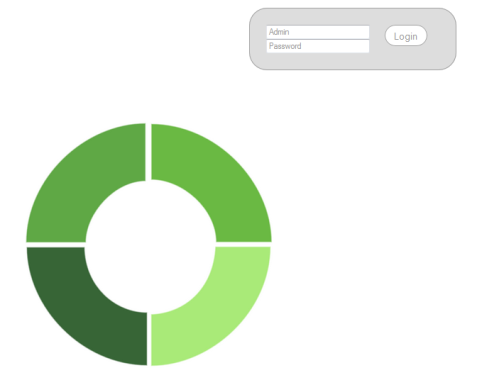
Login: Enter a valid Username and Password, you will then have a menu allowing you access to the menu options the Platform Administrator has granted you. The Login window is only available if you have not already logged in.
The Username field is not case sensitive but the Password field is!
Once you have logged in, the menu options available are;
Home: Returns you to the Web Admin ‘home’ page (with the current user still logged in).
Accounts: (PlatformAdmin only) - This screen allows the Administrator to manage Users and Roles where the project does not have the ‘Enable 'built-in' users enabled. If the project’s ‘built-in’ users are in use then access control (Roles and Permissions) is validated from the values stored in the project while users are validated from the users defined in Account> Users.
User: Any users that you need to allow access to server projects and Web administration should be set up here.
Any changes you make must be stored by pressing Save
Note: If your project uses 'built-in users' (in the 'Users' window of the project) then any Users you define in Web Admin are not added to the project but can access Web Admin.
Role: By defining a Role you can quickly assign access to your users through an existing Active Directory domain. The ‘PlatformAdmin’ (Platform Administrator) Role is reserved for the highest level of access and provides access to all areas of Web Admin. Under no circumstances delete this Role!
Note: If your project uses 'built-in users' (in the 'Users' Panel of the project) then any Roles you define in Web Admin do not apply to the project
Alarms: Allows current and history alarms to be searched/viewed and acknowledged
History: Select the ‘From’ and ‘To’ date and time then press 'Search'. You can select how many entries you want displayed from the options of 10, 25, 50 or 100.
Current: Select the ‘From’ and ‘To’ date and time then press 'Search'. You can select how many entries you want displayed from the options of 10, 25, 50 or 100.
Dashboard: (PlatformAdmin only) - Allows the Platform Administrator to Start and Stop or Restart both the Alarm and Operator services
Settings: (PlatformAdmin only) - Allows the Platform Administrator to configure the Alarm server settings and set the Port and Stack Product options for the Operator server
Alarm Server - Enter the Alarm Server Configuration settings for the database, the most important being the Type and connection string to enable and optimise the connection to work.
Database Type: Default is SQLite. Should be 'SQL Server'.
Oracle and MySQL Database Types may be supported in the future.
Connection String: Default (for SQL Server) is;
‘Server=localhost;database=DATABASE_NAME;Integrated Security=SSPI;’
Replace DATABASE_NAME with the correct name of the database to use.
FeatureEnable Database: Default true. Enable logging to the database.
Enable Email Notify: Default False. Slated for evolution.
Enable Replication: Default False. Slated for evolution.
Enable Datalog: Default False. You must set this to True if you intend to use Datalogs in Sym3.
Enable Event Service: New in Sym3 V6.2. Default True. Allows the event logging to be disabled
Enable Auto Acknowledge: Default False. Slated for evolution
Cache Max Num Of Alarm: Default 10000. Specify number of Alarms entries held in memory. These are stored in a queue with older alarms written to the database as new ones arrive.
Cache Retention Day: Default 2 days. Alarms older than this are flushed to the database.
Database Max Num Of Alarm: Default 1800000. Oldest Alarms exceeding this number are removed from the database as new Alarms arrive.
Database Retention Day: Default 90 days. Alarms older than this are removed from the database.
Database Max Num Of Event: New in Sym3 V6.2. Default 1800000. Oldest Events exceeding this number are removed from the database as new Alarms arrive.
Database Retention Day for Events: New in Sym3 V6.2. Default 90 days. Events older than this are removed from the database.
Interval In Minutes: Default 60 minutes. Poll for old alarms or events on this interval.
Cache Number Of Samples: Default 10. Number of Datalog Samples to hold in memory. Older Datalog samples over this value are written to the database.
Database Max Num Of Samples: Default 100000. Oldest Data log Samples exceeding this number are removed from the database as new Samples arrive.
Enable Http Port: Default False. Best set to True so it allows you to use Mobile clients in the future. Leaving this set to False produces a Not connected error when attempting to connect a Mobile client.
Use Sym3 Server Tags: Default True.
Communication Wcf Http Port: Default 20010. Do not change unless WCF port changes.
Communication Wcf Tcp Port: Default 20011. Do not change unless the WCF port changes.
Communication Wcf Activate Tcp Port: Default 20011. Do not change unless the WCF Activate port changes.
Save: Press to Save your changes.
Note: You must save these changes and restart the Alarm Server for these changes to take effect.
Operator Server: Enter the Operator Server Configuration settings.
Port: Enter the Port for the Client to use to connect to the Operator Server.
Stack Product: Enable this if you need to see product stacked on top of each other rather than appearing as if they are one box. This makes a product jam more obvious as a tall stack of boxes.
Note: You must save these changes and restart the Operator Server for these changes to take effect.
Save: Press to Save your changes.
Authentication Server: Enter the Authentication screen to select from one of the Authentication methods.
Refer to the Web Authentication page for details on selecting and setting up the Authentication type.
Save: Press to Save your changes.
Note: You must save these changes and restart the Alarm Server for these changes to take effect.
Project File: (PlatformAdmin only) - Allows the Platform Administrator to change the current project. See "Deploying a project"
Logout: Returns you to the Web Admin ‘Home’ page, logging out the current user and displays the Login window.